FlowLayout 배치관리자
배치 방법
FlowLayout 배치괸리자를 가진 컨테이너를 가진 컨테이너에 컴포넌트를 부착하는 방법은 다음과 같이 간딘히 add() 메서드를 이용하면 됩니다.
container.setLayout(new FlowLayout());
container.add(new JButton("add"));
container.add(new JButton("sub"));
container.add(new JButton("mul"));
container.add(new JButton("div"));
container.add(new JButton("Calculate"));
FlowLayout 배치관리자는 컴포넌트를 왼쪽에서 오른쪽으로 배치하고, 더 이상 오른쪽 공간이 없으면 다시 아래로 내려와서 왼쪽에서 오른쪽으로 배치합니다. 컨테이너의 크기가 변하면, FlowLayout 배치 관리자에 의해 컨테아너 크기에 맞도록 컴포넌트가 재배치됩니다.
FlowLayout의 생성자와 속성
FlowLayout 배치관리자의 생성자는 다음과 같이 여러 개 있으며, 생성자에 컴포넌트 사이의 간격과 정렬 방식을 지정할 수 있으며 FlowLayout 배치관리자의 align, hGap, vGap 속성을 보여줍니다.
FlowLayout()
FlowLayout(int align)
FlowLayout(int align, int hGap, int vGap)
- align: 컴포넌트의 정렬 방법, 왼쪽 정렬(FlowLayout.LEFT), 오른쪽 정렬(FlowLayout.RIGHT), 중앙 정렬(FlowLoayout.CENTER(디폴트))
- hGap: 좌우 컴포넌트 사이의 수평 간격, 픽셀 단위. 디폴트는 5
- vGap: 상화 컴포넌트 사이의 수작 간격, 픽셀 단위. 디폴트는 5
FlowLayout의 생성자를 사용하는 예를 들면 다음과 같다.
new FlowLayout(); // 중앙 정렬과 hGap=5, vGap=5 인 배치관리자
new FlowLayout(FlowLayout.LEFT); // 왼쪽 정렬과 hGap=5, vGap=5인 배치관리자
new FlowLayout(FlowLayout.LEFT, 10, 20); // 중앙 정렬. hGap=10, vGap=20인 배치관리자
FlowLayout 배치관리자 활용
import javax.swing.*;
import java.awt.*;

public class FlowLayoutEx extends JFrame {
    public FlowLayoutEx() {
        setTitle("FlowLayout Sample");
        setDefaultCloseOperation(JFrame.EXIT_ON_CLOSE);
        Container c = getContentPane();

        // 컨텐트팬에 FlowLayout 배치 관리자 설정
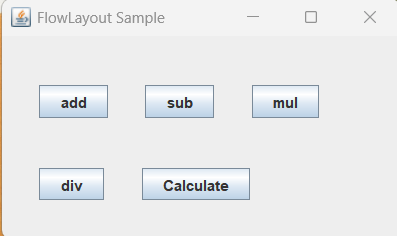
        c.setLayout(new FlowLayout(FlowLayout.LEFT, 30, 40));
        c.add(new JButton("add"));
        c.add(new JButton("sub"));
        c.add(new JButton("mul"));
        c.add(new JButton("div"));
        c.add(new JButton("Calculate"));

        setSize(300, 200); // 프레임 크기 300x200 설정
        setVisible(true); // 화면에 프레임 출력
    }

    public static void main(String[] args) {
        new FlowLayoutEx();
    }
}
실행 결과
'프로그래밍 언어 > JAVA' 카테고리의 다른 글
| GridLayout 배치관리자 (1) | 2025.05.27 |
|---|---|
| BorderLayout 배치 관리자 (1) | 2025.05.24 |
| 컨테이너(Container)와 배치(Layout) (1) | 2025.05.20 |
| 스윙 GUI 프로그램 만들기 (1) | 2025.05.17 |
| 자바 GUI 패키지 (1) | 2025.05.14 |


