프로젝트 구조 갖추기 (2)
기본적인 라우터와 템플릿 엔진도 만듭니다. routes 폴더 안에 page.js를, views 폴더 안에는 layout.html, main.html, profile.html, join.html, error.html을 생성합니다. 약간의 디자인을 위헤 main.css를 public 폴더 안에 생성합니다.
routes/page.ts
const express = require("express");

const router = express.Router();

router.use((req, res, next) => {
  res.locals.user = null;
  res.locals.followerCount = 0;
  res.locals.followingCount = 0;
  res.locals.followerCount = [];
  next();
});

router.get("/profile", (req, res) => {
  res.render("profile", { title: "내 정보 - NodeBird" });
});

router.get("/join", (req, res) => {
  res.render("join", { title: "회원가입 - NodeBird" });
});

router.get("/", (req, res, next) => {
  const twits = [];
  res.render("main", {
    title: "NodeBird",
    twits,
  });
});

module.exports = router;
GET / profile, GET /join, GET /까지 총 세개의 페이지로 구성되어 있습니다. router.use로 라우터용 미들웨어를 만들어 템플릿 엔진에서 사용할 user, followingCount, followerCount, followIdList 변수를 res.locals로 설정했습니다. 지금은 각각 null, 0, 0, []이지만 나중에 값을 넣을 것입니다. res.locals로 값을 설정하는 이유는 user, followingCount, followerCount, followedIdList 변수를 모든 템플릿 엔진에서 공통으로 사용하기 떄문입니다.
render 메서드 안의 twits도 지금은 빈 배열이지만, 나중에 값을 넣습니다.
views/layout.html
<!DOCTYPE html>
<html>
<head>
<meta charset="UTF-8">
<title>{{title}}</title>
<meta name="viewport" content="width=device-width, user-scalable=no">
<meta http-equiv="X-UA-Compatible" content="IE=edge">
<link rel="stylesheet" href="/main.css">
</head>
<body>
<div class="container">
<div class="profile-wrap">
<div class="profile">
{% if user and user.id %}
<div class="user-name">{{'안녕하세요! ' + user.nick + '님'}}</div>
<div class="half">
<div>팔로잉</div>
<div class="count following-count">{{followingCount}}</div>
</div>
<div class="half">
<div>팔로워</div>
<div class="count follower-count">{{followerCount}}</div>
</div>
<input id="my-id" type="hidden" value="{{user.id}}">
<a id="my-profile" href="/profile" class="btn">내 프로필</a>
<a id="logout" href="/auth/logout" class="btn">로그아웃</a>
{% else %}
<form id="login-form" action="/auth/login" method="post">
<div class="input-group">
<label for="email">이메일</label>
<input id="email" type="email" name="email" required autofocus>
</div>
<div class="input-group">
<label for="password">비밀번호</label>
<input id="password" type="password" name="password" required>
</div>
<a id="join" href="/join" class="btn">회원가입</a>
<button id="login" type="submit" class="btn">로그인</button>
<a id="kakao" href="/auth/kakao" class="btn">카카오톡</a>
</form>
{% endif %}
</div>
<footer>
Made by
<a href="https://www.zerocho.com" target="_blank">ZeroCho</a>
</footer>
</div>
{% block content %}
{% endblock %}
</div>
<script src="https://unpkg.com/axios/dist/axios.min.js"></script>
<script>
window.onload = () => {
if (new URL(location.href).searchParams.get('loginError')) {
alert(new URL(location.href).searchParams.get('loginError'));
}
};
</script>
{% block script %}
{% endblock %}
</body>
</html>
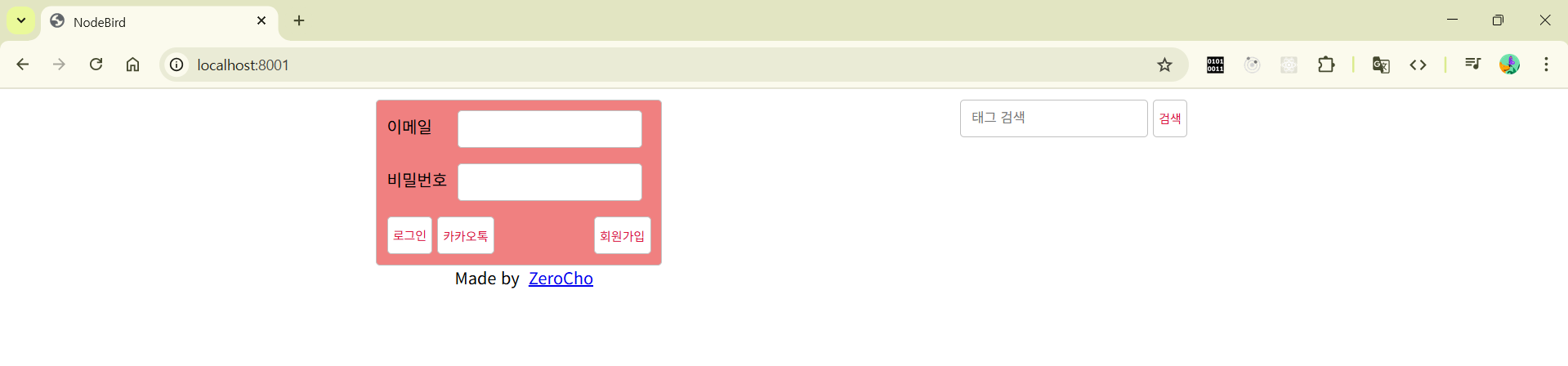
layout.html에서는 if문을 중점적으로 보면 됩니다. 렌더링할 때 user가 존재하면 사용자 정보와 팔로잉, 팔로워 수를 보여주고, 존재하지 않으면 로그인 메뉴를 보여줍니다.
{% extends 'layout.html' %} {% block content %}
<div class="timeline">
  {% if user %}
  <div>
    <form
      id="twit-form"
      action="/post"
      method="post"
      enctype="multipart/form-data"
    >
      <div class="input-group">
        <textarea id="twit" name="content" maxlength="140"></textarea>
      </div>
      <div class="img-preview">
        <img
          id="img-preview"
          src=""
          style="display: none"
          width="250"
          alt="미리보기"
        />
        <input id="img-url" type="hidden" name="url" />
      </div>
      <div>
        <label id="img-label" for="img">사진 업로드</label>
        <input id="img" type="file" accept="image/*" />
        <button id="twit-btn" type="submit" class="btn">짹짹</button>
      </div>
    </form>
  </div>
  {% endif %}
  <div class="twits">
    <form id="hashtag-form" action="/hashtag">
      <input type="text" name="hashtag" placeholder="태그 검색" />
      <button class="btn">검색</button>
    </form>
    {% for twit in twits %}
    <div class="twit">
      <input type="hidden" value="{{twit.User.id}}" class="twit-user-id" />
      <input type="hidden" value="{{twit.id}}" class="twit-id" />
      <div class="twit-author">{{twit.User.nick}}</div>
      {% if not followerIdList.includes(twit.User.id) and twit.User.id !==
      user.id %}
      <button class="twit-follow">팔로우하기</button>
      {% endif %}
      <div class="twit-content">{{twit.content}}</div>
      {% if twit.img %}
      <div class="twit-img"><img src="{{twit.img}}" alt="섬네일" /></div>
      {% endif %}
    </div>
    {% endfor %}
  </div>
</div>
{% endblock %} {% block script %}
<script>
  if (document.getElementById("img")) {
    document.getElementById("img").addEventListener("change", function (e) {
      const formData = new FormData();
      console.log(this, this.files);
      formData.append("img", this.files[0]);
      axios
        .post("/post/img", formData)
        .then((res) => {
          document.getElementById("img-url").value = res.data.url;
          document.getElementById("img-preview").src = res.data.url;
          document.getElementById("img-preview").style.display = "inline";
        })
        .catch((err) => {
          console.error(err);
        });
    });
  }
  document.querySelectorAll(".twit-follow").forEach(function (tag) {
    tag.addEventListener("click", function () {
      const myId = document.querySelector("#my-id");
      if (myId) {
        const userId = tag.parentNode.querySelector(".twit-user-id").value;
        if (userId !== myId.value) {
          if (confirm("팔로잉하시겠습니까?")) {
            axios
              .post(`/user/${userId}/follow`)
              .then(() => {
                location.reload();
              })
              .catch((err) => {
                console.error(err);
              });
          }
        }
      }
    });
  });
</script>
{% endblock %}
main.html에서는 user 변수가 존재할 때 게시글 업로드 폼을 보여줍니다. for문도 추가되었습니다. 렌더링 시 twits 배열 안의 요소들을 읽어서 게시글로 만듭니다. 지금은 빈 배열이지만, 나중에 twits에 게시글 데이터를 넣으면 됩니다.
if not follwerIdList.includes(twits.User.id) and twit.User.id !== user.id는 나의 팔로워 아이디 목록에 게시글 작성자의 아이디가 없으면 팔로우 버튼을 보여주기 위한 구문입니다. 또한 게시글 작성자가 아인 경우 나를 팔로우할 수는 없개 했습니다. if not과 and를 써서 여러 거지 조건들을 조합했습니다. 넌적스 문법입니다.
views/profile.html
{% extends 'layout.html' %}

{% block content %}
  <div class="timeline">
    <div class="followings half">
      <h2>팔로잉 목록</h2>
      {% if user.Followings %}
        {% for following in user.Followings %}
          <div>{{following.nick}}</div>
        {% endfor %}
      {% endif %}
    </div>
    <div class="followers half">
      <h2>팔로워 목록</h2>
      {% if user.Followers %}
        {% for follower in user.Followers %}
          <div>{{follower.nick}}</div>
        {% endfor %}
      {% endif %}
    </div>
  </div>
{% endblock %}
profile.html은 사용자의 팔로워와 사용자가 팔로잉 중인 목록을 보여줍니다.
views/join.html
{% extends 'layout.html' %}

{% block content %}
  <div class="timeline">
    <form id="join-form" action="/auth/join" method="post">
      <div class="input-group">
        <label for="join-email">이메일</label>
        <input id="join-email" type="email" name="email"></div>
      <div class="input-group">
        <label for="join-nick">닉네임</label>
        <input id="join-nick" type="text" name="nick"></div>
      <div class="input-group">
        <label for="join-password">비밀번호</label>
        <input id="join-password" type="password" name="password">
      </div>
      <button id="join-btn" type="submit" class="btn">회원가입</button>
    </form>
  </div>
{% endblock %}

{% block script %}
  <script>
    window.onload = () => {
      if (new URL(location.href).searchParams.get('error')) {
        alert('이미 존재하는 이메일입니다.');
      }
    };
  </script>
{% endblock %}
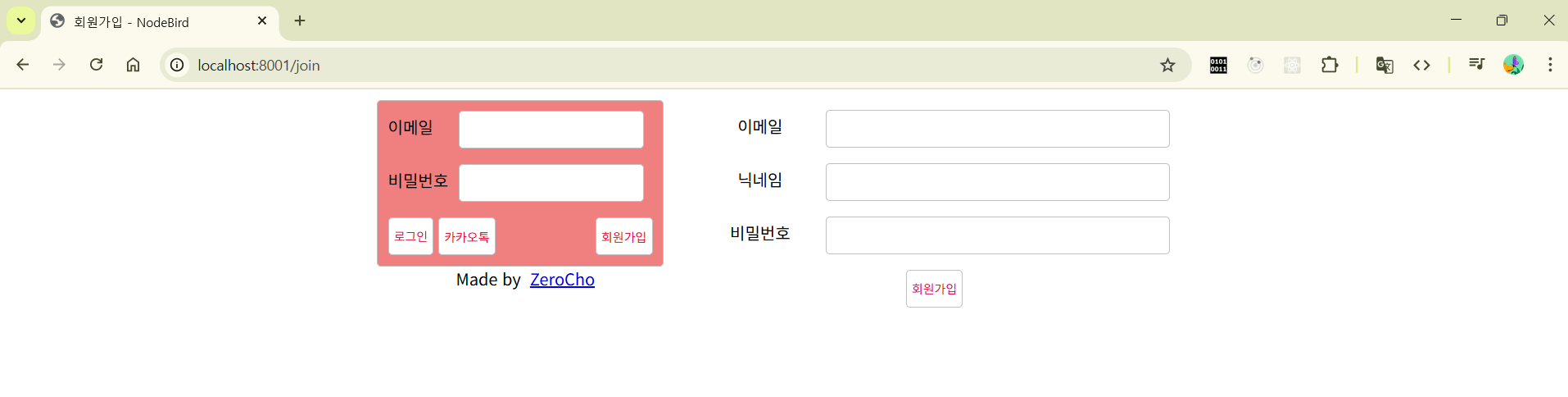
join.html은 회원가입하는 폼을 보여줍니다.
{% extends 'layout.html' %} {% block content %}
<div class="timeline">
  <form id="join-form" action="/auth/join" method="post">
    <div class="input-group">
      <label for="join-email">이메일</label>
      <input id="join-email" type="email" name="email" />
    </div>
    <div class="input-group">
      <label for="join-nick">닉네임</label>
      <input id="join-nick" type="text" name="nick" />
    </div>
    <div class="input-group">
      <label for="join-password">비밀번호</label>
      <input id="join-password" type="password" name="password" />
    </div>
    <button id="join-btn" type="submit" class="btn">회원가입</button>
  </form>
</div>
{% endblock %} {% block script %}
<script>
  window.onload = () => {
    if (new URL(location.href).searchParams.get("error")) {
      alert("이미 존재하는 이메일입니다.");
    }
  };
</script>
{% endblock %}
join.html은 회원가입하는 폼을 보여줍니다.
views/error.html
{% extends 'layout.html' %} {% block content %}
<h1>{{message}}</h1>
<h2>{{error.status}}</h2>
<pre>{{error.stack}}</pre>
{% endblock %}
error.html은 서버에 에러가 발생했을 때 에러 내역을 보여줍니다. 에러는 콘솔로 봐도 되지만 브라우저 화면으로 보면 좀 더 편리합니다. 단, 배포 시에는 에러 내용을 보여주지 않는 게 보안상 좋습니다.
마지막으로 디자인을 위한 css 파일입니다.
* {
  box-sizing: border-box;
}
html,
body {
  margin: 0;
  padding: 0;
  height: 100%;
}
.btn {
  display: inline-block;
  padding: 0 5px;
  text-decoration: none;
  cursor: pointer;
  border-radius: 4px;
  background: white;
  border: 1px solid silver;
  color: crimson;
  height: 37px;
  line-height: 37px;
  vertical-align: top;
  font-size: 12px;
}
input[type="text"],
input[type="email"],
input[type="password"],
textarea {
  border-radius: 4px;
  height: 37px;
  padding: 10px;
  border: 1px solid silver;
}
.container {
  width: 100%;
  height: 100%;
}
@media screen and (min-width: 800px) {
  .container {
    width: 800px;
    margin: 0 auto;
  }
}
.input-group {
  margin-bottom: 15px;
}
.input-group label {
  width: 25%;
  display: inline-block;
}
.input-group input {
  width: 70%;
}
.half {
  float: left;
  width: 50%;
  margin: 10px 0;
}
#join {
  float: right;
}
.profile-wrap {
  width: 100%;
  display: inline-block;
  vertical-align: top;
  margin: 10px 0;
}
@media screen and (min-width: 800px) {
  .profile-wrap {
    width: 290px;
    margin-bottom: 0;
  }
}
.profile {
  text-align: left;
  padding: 10px;
  margin-right: 10px;
  border-radius: 4px;
  border: 1px solid silver;
  background: lightcoral;
}
.user-name {
  font-weight: bold;
  font-size: 18px;
}
.count {
  font-weight: bold;
  color: crimson;
  font-size: 18px;
}
.timeline {
  margin-top: 10px;
  width: 100%;
  display: inline-block;
  border-radius: 4px;
  vertical-align: top;
}
@media screen and (min-width: 800px) {
  .timeline {
    width: 500px;
  }
}
#twit-form {
  border-bottom: 1px solid silver;
  padding: 10px;
  background: lightcoral;
  overflow: hidden;
}
#img-preview {
  max-width: 100%;
}
#img-label {
  float: left;
  cursor: pointer;
  border-radius: 4px;
  border: 1px solid crimson;
  padding: 0 10px;
  color: white;
  font-size: 12px;
  height: 37px;
  line-height: 37px;
}
#img {
  display: none;
}
#twit {
  width: 100%;
  min-height: 72px;
}
#twit-btn {
  float: right;
  color: white;
  background: crimson;
  border: none;
}
.twit {
  border: 1px solid silver;
  border-radius: 4px;
  padding: 10px;
  position: relative;
  margin-bottom: 10px;
}
.twit-author {
  display: inline-block;
  font-weight: bold;
  margin-right: 10px;
}
.twit-follow {
  padding: 1px 5px;
  background: #fff;
  border: 1px solid silver;
  border-radius: 5px;
  color: crimson;
  font-size: 12px;
  cursor: pointer;
}
.twit-img {
  text-align: center;
}
.twit-img img {
  max-width: 75%;
}
.error-message {
  color: red;
  font-weight: bold;
}
#search-form {
  text-align: right;
}
#join-form {
  padding: 10px;
  text-align: center;
}
#hashtag-form {
  text-align: right;
}
footer {
  text-align: center;
}
이제 npm start로 서버를 실행하고 http://localhost:8001에 접속하면 다음과 같은 화면이 뜰 것입니다.
'프로그래밍 언어 > NODE JS' 카테고리의 다른 글
| 데이터베이스 세팅하기 (0) | 2025.10.14 |
|---|---|
| 데이터베이스 세팅하기 (1) (0) | 2025.10.11 |
| 프로젝트 구조 갖추기 (1) (0) | 2025.10.05 |
| 쿼리 수행하기 (0) | 2025.10.02 |
| 스키마 정의하기 (0) | 2025.09.29 |
