영화 앱 멋지게 스타일링하기

App.css 파일 수정하기
@font-face {
  font-family: "Ownglyph_wiseelist-Rg";
  src: url("https://fastly.jsdelivr.net/gh/projectnoonnu/2501-1@1.1/Ownglyph_wiseelist-Rg.woff2")
    format("woff2");
  font-weight: normal;
  font-style: normal;
}

* {
  box-sizing: border-box;
}

body {
  margin: 0;
  padding: 0;
  font-family: "Ownglyph_wiseelist-Rg";
  background-color: #eff3f7;
  height: 100%;
}
Movie.css 파일 수정하기
.movies .movie {
  background-color: white;
  margin-bottom: 70px;
  font-weight: 300;
  padding: 20px;
  border-radius: 5px;
  color: #adaeb9;
  box-shadow: 0 13px 27px -5px rgba(50, 50, 93, 0.25),
    0 8px 16px -8px rgba(0, 0, 0, 0.3), 0 -6px 16px -6px rgba(0, 0, 0, 0.025);
}

.movies .movie a {
  display: grid;
  grid-template-columns: minmax(150px, 1fr) 2fr;
  grid-gap: 20px;
  text-decoration: none;
  color: inherit;
}

.movie img {
  position: relative;
  top: -50px;
  max-width: 150px;
  width: 100%;
  margin-right: 30px;
  box-shadow: 0 30px 60px -12px rgba(50, 50, 93, 0.25),
    0 18px 36px -18px rgba(0, 0, 0, 0.3), 0 -12px 36px -8px rgba(0, 0, 0, 0.025);
}

.movie .movie__title,
.movie .movie__year {
  margin: 0;
  font-weight: 300;
}

.movie .movie__title {
  margin-bottom: 5px;
  font-size: 24px;
  color: #2c2c2c;
}

.movie .movie__genres {
  list-style: none;
  padding: 0;
  margin: 0;
  display: flex;
  flex-wrap: wrap;
  margin: 5px 0px;
}

.movie__genres li,
.movie .movie__year {
  margin-right: 10px;
  font-size: 14px;
}


브라우저 폭이 좁아지는 것을 맞춰 영화 카드의 크기가 달라집니다.
스놉시스 180자로 제한하기
자바 스크립트의 slice() 함수를 사용하면 됩니다. slice() 함수를 문자열에 적용하려면 [문자열].slice(시작, 끝)와 같이 사용하면 됩니다.
시작은 0부터이고 끝은 포함되지 않습니다.
import React from "react";
import PropTypes from "prop-types";
import "./Movie.css";

const Movie = ({ title, year, summary, poster, genres }) => {
  return (
    <div className="movie">
      <img src={poster} alt={title} title={title} />
      <div className="movie__data">
        <h3 className="movie__title">{title}</h3>
        <h5 className="movie__year">{year}</h5>
        <ul className="movie__genres">
          {genres.map((genre, index) => {
            return (
              <li key={index} className="movie__genre">
                {genre}
              </li>
            );
          })}
        </ul>
        <p className="movie_summary">{summary.slice(0, 180)}...</p>
      </div>
    </div>
  );
};

Movie.propTypes = {
  year: PropTypes.number.isRequired,
  title: PropTypes.string.isRequired,
  summary: PropTypes.string.isRequired,
  poster: PropTypes.string.isRequired,
  genres: PropTypes.arrayOf(PropTypes.string.isRequired),
};

export default Movie;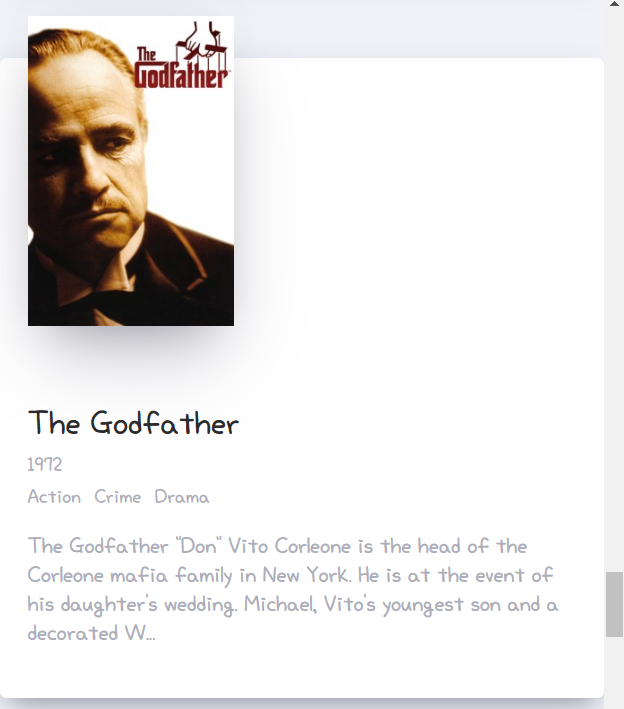
영화 앱 제목 바꾸기
영화 앱 제목은 public 폴더의 index.html 파일을 열어 title 엘리턴트 사이에 넣으면 됩니다.
title 엘리먼트는 head 엘리먼트 안에 있습니다.
<!DOCTYPE html>
<html lang="en">
  <head>
    <meta charset="utf-8" />
    <link rel="icon" href="%PUBLIC_URL%/favicon.ico" />
    <meta name="viewport" content="width=device-width, initial-scale=1" />
    <meta name="theme-color" content="#000000" />
    <meta
      name="description"
      content="Web site created using create-react-app"
    />
    <link rel="apple-touch-icon" href="%PUBLIC_URL%/logo192.png" />
    <!--
      manifest.json provides metadata used when your web app is installed on a
      user's mobile device or desktop. See https://developers.google.com/web/fundamentals/web-app-manifest/
    -->
    <link rel="manifest" href="%PUBLIC_URL%/manifest.json" />
    <!--
      Notice the use of %PUBLIC_URL% in the tags above.
      It will be replaced with the URL of the `public` folder during the build.
      Only files inside the `public` folder can be referenced from the HTML.

      Unlike "/favicon.ico" or "favicon.ico", "%PUBLIC_URL%/favicon.ico" will
      work correctly both with client-side routing and a non-root public URL.
      Learn how to configure a non-root public URL by running `npm run build`.
    -->
    <title>Movie App</title>
  </head>
  <body>
    <noscript>You need to enable JavaScript to run this app.</noscript>
    <div id="root"></div>
  </body>
</html>
'프로그래밍 언어 > REACT' 카테고리의 다른 글
| 라우터 만들어 보기 (0) | 2025.02.14 |
|---|---|
| react-router-dom 설치하고 프로젝트 폴더 정리하기 (0) | 2025.02.11 |
| 영화 앱 스타일링하기 - 기초 (0) | 2025.02.07 |
| Movie 컴포넌트 만들기 (0) | 2025.02.06 |
| 영화 데이터 화면에 그리기 (0) | 2025.02.05 |


