다이얼로그 만들기
JDialog
다이얼로그란 보여주고자 하는 내용을 스크린에 출력하고, 사용자로부터 입력을 받는 대화 상자입니다. JDialog를 상속받아 자신만의 다이얼로그를 만들 수 있습니다. JDialog는 JFrame처럼 다른 컨테이너에 속할 필요 없이 화면에 출력 가능한 최상위 컨테이너입니다.
JDialog dialog = new JDialog(); // 다이얼로그 생성
dialog.setTitle("나의 다이얼로그"); // 타이틀 달기
dialog.add(new JButton("click!")); // 다이얼로그에 버튼 삽입
dialog.setSize(300, 300); // 다이얼로그 크기 설정
dialog.setVisible(true); // 다이얼로그 화면에 출력
JDialog 클래스의 주요 멤버
| 메서드 | 내용 |
| JDialog() JDialog(Frame owner) JDialog(Frane owner, String title) JDialog(Frame owner, String title, boolean modal) |
다이얼로그를 생성하는 생성자입니다. owner는 다이얼로그의 주인, title은 타이틀, modal은 다이얼로그의 종류를 뜻합니다. modal 값이 true이면 모달 다이얼로그를, false이면 모달리스 다이얼로그를 생성합니다. 디폴트는 모달리스 타입입니다. |
| void setVisible(boolean b) | b가 true이면 다이얼로그를 화면에 출력하고 false이면 숨깁니다. |
| void setTitle(String title) | title 문자열을 다이얼로그 타이틀로 설정합니다. |
다이얼로그 만들기
JDialog를 상속받는 다이얼로그 클래스 작성
Dialog를 상속받은 MyDialog 클래스를 작성합니다.
class MyDialog extends JDialog {
}
다이얼로그 생성자 작성
Dialog 클래스의 생성자는 여러 가지가 있으며, 다음과 같이 MyDialog의 생상자를 작성합니다.
class MyDialog extends JDialog {
	public MyDialog(JFrame frame, String title) {
		super(frame, title); // frame은 다이얼로그의 주인이며 title은 다이얼로그의 타이틀입니다.
	}
}
생성자에서 super()를 호출하여 다이얼로그의 주인(owner)이 되는 컴포넌트와 타이틀 문자열을 JDialog에게 알려주어 등록하게 합니다.
다이얼로그에 삽입할 컴포넌트 생성
다이얼로그에 삽입할 텍스트 필드와 OK 버튼 컴포넌트를 생성합니다.
class MyDialog extends JDialog {
	private JTextField tf = new JTextField(10); // 10인 크기의 텍스트필드 컴포넌트 생성
	private JButton okButton = new JButton("OK"); // OK 버튼 생성

	public MyDialog(JFrame frame, String title) {
		super(frame, title);
	}
}
다이얼로그에 컴포넌트 부착
생성자에 컴포넌트를 부착하는 코드를 작성합니다.
class MyDialog extends JDialog {
	private JTextFeild tf = new JTextField(10);
	private JButton okButton = new JButton("OK");

 	public MyDialog(JFrame frame, String title) {
		super(frame, title);
		setLayout(new FlowLayout()); // FlowLayout 배치 관리자로 변경
		add(tf); // 텍스트필드 부착
 		add(okButton); // OK 버튼 부착
 	}
}
OK 버튼에 Action 리스너 달기
다이얼로그는 숨겨지는 것이지 사라지는 것이 아닙니다.
class MyDialog extends JDialog {
    JTextField tf = new JTextField(10);
    JButton OKButton = new JButton("OK");

    public MyDialog(JFrame frame, String title) {
        super(frame, title);
        setLayout(new FlowLayout());
        add(tf);
        add(OKButton);
        setSize(200, 100);

        OKButton.setActionListener(new ActionListener() { // Action 리스너 등록
            public void actionPerformed(ActionEvent e) {
                setVisible(false); // OK 버튼이 선택되면 다이얼로그를 화면에서 숨김
            }
        });
    }
}
MyDialog 다이얼로그를 생성하는 프레임 작성
마지막으로 MyDialog의 다이얼로그를 생성하는 스윙 프레임과 main() 메서드를 작성합니다.
public class DialogEx extends JFrame {
    MyDialog dialog;

    public DialogEx() {
        super("DialogEx 예제 프레임");

        dialog = new MyDialog(this, "Test Dialog"); // 다이얼로그 생성, 이때 화면에 보이는 것은 아니다.
        JButton btn = new JButton("Show Dialog");  // 프레임에 버튼 삽입

        // 버튼이 선택되면 다이얼로그를 작동시킨다.
        btn.addActionListener(new ActionListener() {
            public void actionPerformed(ActionEvent e) {
                dialog.setVisible(true); // 다이얼로그를 출력하고 작동시킨다. 버튼이 선택되면 화면에 보이도록 한다.
            }
        });

        getContentPane().add(btn);
        setSize(250, 200);
        setVisible(true);
    }

    public static void main(String[] args) {
        new DialogEx();
    }
}
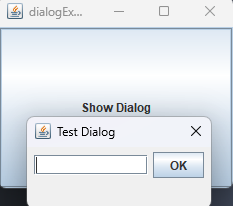
다음과 같이 프레임의 생성자에서 MyDialog의 다이얼로그를 생성합니다. 하지만, 아직 다이얼로그가 화면에 보이지 않습니다.
MyDialog dialog = new Dialog(this, "Test Dialog");
그리고 나서 "Show Dialog" 버튼이 선택될 때마다 Action리스너에서 다이얼로그가 화면에 나타나도록 다음 코드를 실행합니다.
dialog.setVisible(true);
JDialog를 상속받아 다이얼로그 만들기
import javax.swing.*;
import java.awt.*;
import java.awt.event.ActionEvent;
import java.awt.event.ActionListener;

class MyDialog extends Dialog {
    private JTextField tf = new JTextField(10); // 다이얼로그에 삽입할 텍스트 필드
    private JButton okButton = new JButton("OK"); // 다이얼로그에 삽입할 OK 버튼

    public MyDialog(JFrame frame, String title) {
        super(frame, title);
        setLayout(new FlowLayout());
        add(tf);
        add(okButton);
        setSize(200, 100);

        // 다이얼로그의 OK 버튼에 Action 리스너 달기
        // OK 버튼이 선택되면 다이얼로그가 화면에서 사라지게 한다.
        okButton.addActionListener(new ActionListener() {
               @Override
               public void actionPerformed(ActionEvent e) {
                   setVisible(false); // 다이얼로그를 보이지 않게 한다.
               }
           }
        );
    }
}

public class DialogEx extends JFrame {
    private MyDialog dialog; // 다이얼로그의 래퍼런스

    public DialogEx() {
        super("dialogEx 예제 프레임");
        setDefaultCloseOperation(JFrame.EXIT_ON_CLOSE);
        JButton btn = new JButton("Show Dialog");

        // 다이얼로그 생성
        dialog = new MyDialog(this, "Test Dialog");

        // Show Dialog 버튼을 선택하면 다이얼로그를 작동시킨다.
        btn.addActionListener(new ActionListener() {
            @Override
            public void actionPerformed(ActionEvent e) {
                dialog.setVisible(true); // 다이얼로그를 출력하고 작동시킨다.
            }
        });

        getContentPane().add(btn);
        setSize(250, 200);
        setVisible(true);
    }

    public static void main(String[] args) {
        new DialogEx();
    }
}
[실행 결과]