팝업 다이얼로그
팝업 다이얼로그와 JOptionPane
팝업 다이얼로그는 스윙 패키지에 구현된 간단한 팝업창으로 사용자에게 메시지를 전달하거나 간단한 문자열을 입력받는 유용한 다이얼로그입니다.
JOptionPane 클래스는 여러 종류의 팝업 다이얼로그를 출력하는 static 메서드를 지원합니다. JOptionPane 클래스에 의해 지원되는 팝업 다이얼로그는 모달 타입입니다. 그러므로 팝업 다이얼로그를 닫기 전에는 프레임을 포함하여 어떤 창으로든 이동할 수 없습니다.
입력 다이얼로그, JOptionPane.showInputDialog()
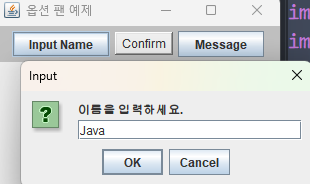
JOptionPane의 showInputDialog() 메서드를 호출하면 한 줄의 문자열을 입력받는 입력 다이얼로그를 출력할 수 있습니다.
static String JOptionPane.showInputDialog(String msg)
// msg : 다이얼로그 메시지
// 리턴 값 : 사용자가 입력한 문자열. 취소 버튼이 선택되거나 창이 닫히면 null 리턴
String name = JOptionPane.showInputDialog("이름을 입력하세요.");
// name에 "Java Kim"이 리턴
// 사용자가 입력 없이 팝업 다이얼로그를 닫으면 null 리턴
확인 다이얼로그, JOptionPame.showConfirmDialog()
static int JOptionPane.showConfirmDialog(Component parentComponent, Object msg, String title, int optionType)
// parentComponent : 다이얼로그의 부모 컴포넌트로서 다이얼로그가 출력되는 영역의 범위 지정을 위해 사용 (예: 프레임). null이면 전체 화면 중앙에 출력
// msg : 다이얼로그 메시지
// title : 다이얼로그 타이틀
// optionType : 다이얼로그 옵션 종류 지정
//    YES_NO_OPTION, YES_NO_CANCEL_OPTION, OK_CANCEL_OPTION
// 리턴 값 : 사용자가 선택한 옵션 종류
//    YES_OPTION, NO_OPTION, CANCEL_OPTION, OK_OPTION, CLOSED_OPTION
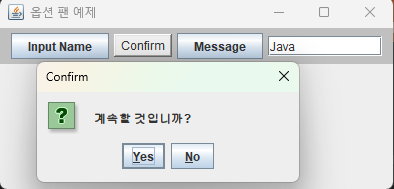
int result = JOptionPane.showConfirmDialog(null, "계속할 것입니까?", "Confirm", JOptionPane.YES_NO_OPTION);
if (result == JOptionPane.CLOSE_OPTION) {
    // 사용자가 "예" 혹은 "아니오"의 선택 없이 다이얼로그 창을 닫은 경우
}
else if (result == JOptionPane.YES_OPTION) {
    // 사용자가 "예"를 선택한 경우
}
else {
    // 사용자가 "아니오"를 선택한 경우
}
메시지 다이얼로그, JOptionPane.showMessageDialog()
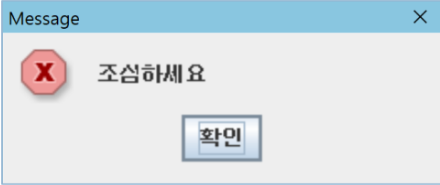
showMessageDialog() 메서드를 이용하면, 사용자에게 문자열 메시지를 출력하기 위한 메시지 다이얼로그를 출력합니다.
static void JOptionPane.showMessageDialog(
 	Component parentComponent,
	Object msg,
	String title,
	int messageType
)

// parentComponent : 다이얼로그의 부모 컴포넌트로서 다이얼로그가 출력되는 영역의 범위 지정을 위해 사용
// (예: 프레임). null이면 전체 화면 중앙에 출력
// msg : 다이얼로그 메시지
// title : 다이얼로그 타이틀
// messageType : 다이얼로그의 종류로서 다음 중 하나
// ERROR_MESSAGE, INFORMATION_MESSAGE, WARNING_MESSAGE, QUESTION_MESSAGE, PLAIN_MESSAGE
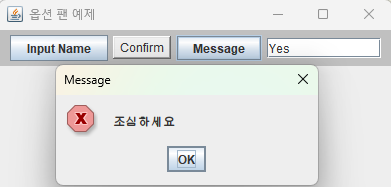
JOptionPane.showMessageDialog(
null,
"조심하세요",
"Message",
JOptionPane.ERROR_MESSAGE
);
JOptionPane을 사용한 팝업 다이얼로그 작성
import javax.swing.*;
import java.awt.*;
import java.awt.event.ActionEvent;
import java.awt.event.ActionListener;

public class OptionPaneEx extends JFrame {
    public OptionPaneEx() {
        setTitle("옵션 팬 예제");
        setDefaultCloseOperation(JFrame.EXIT_ON_CLOSE);
        Container c = getContentPane();
        setSize(300, 200);
        c.add(new MyPanel(), BorderLayout.NORTH);
        setVisible(true);
    }

    class MyPanel extends Panel {
        private JButton InputBtn = new JButton("Input Name");
        private JTextField tf = new JTextField(10);
        private Button cofirmBtn = new Button("Confirm");
        private JButton messageBtn = new JButton("Message");

        public MyPanel() {
            setBackground(Color.LIGHT_GRAY);
            add(InputBtn);
            add(cofirmBtn);
            add(messageBtn);
            add(tf);

            InputBtn.addActionListener(new ActionListener() {
                @Override
                public void actionPerformed(ActionEvent e) {
                    // 입력 다이얼로그 생성
                    String name = JOptionPane.showInputDialog("이름을 입력하세요.");
                    if (name != null) {
                        tf.setText(name); // 사용자가 입력한 문자열을 텍스트필드 전에 출력
                    }
                }
            });

            cofirmBtn.addActionListener(new ActionListener() {
                @Override
                public void actionPerformed(ActionEvent e) {
                    // 확인 다이얼로그 생성
                    int result = JOptionPane.showConfirmDialog(null, "계속할 것입니까?", "Confirm", JOptionPane.YES_NO_OPTION);

                    // 사용자가 선택한 버튼에 따라 문자열을 텍스트필드 창에 출력
                    if (result == JOptionPane.CLOSED_OPTION)
                        tf.setText("Just Closed without Selection");
                    else if (result == JOptionPane.YES_OPTION)
                        tf.setText("Yes");
                    else
                        tf.setText("No");
                }
            });

            messageBtn.addActionListener(new ActionListener() {
                @Override
                public void actionPerformed(ActionEvent e) {
                    // 메시지 다이얼로그 생성
                    JOptionPane.showMessageDialog(null, "조심하세요", "Message", JOptionPane.ERROR_MESSAGE);
                }
            });
        }
    }

    public static void main(String[] args) {
        new OptionPaneEx();
    }
}
[실행 결과]