JSP 페이지에서 파일 업로드
1. sec01.ex01 패키지를 만들고 FileUpload 클래스를 생성합니다. 또 test01 폴더를 생성하고 실습 파일 uploadForm.jsp를 추가합니다.
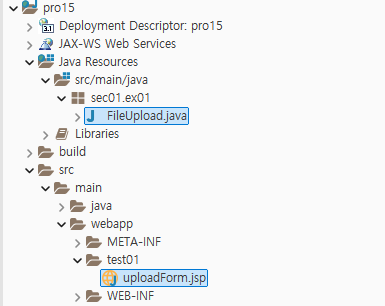
2. 파일을 업로드할 때 사용할 저장소를 다음과 같이 C 드라이브 아래에 만듭니다. 여기서는 폴더 이름을 file_repo로 하였습니다.

3. uploadForm.jsp를 다음과 같이 작성합니다. 파일 업로드 창에서 파일을 업로드할 때 <form> 태그의 encType 속성은 반드시 multipart/form-data로 지정해야 합니다.
<%@ page language="java" contentType="text/html; charset=UTF-8"
    pageEncoding="UTF-8"
    isELIgnored="false" %>
<%@ taglib prefix="fmt" uri="http://java.sun.com/jsp/jstl/fmt" %>
<%@ taglib prefix="c" uri="http://java.sun.com/jsp/jstl/core" %>

<c:set var="contextPath"  value="${pageContext.request.contextPath}"  />

<%
  request.setCharacterEncoding("UTF-8");
%>
<html>
<head>
<meta charset="UTF-8">
 <head>
   <title>파일 업로드창</title>
 </head> <body>
   <form action="${contextPath}/upload.do"  method="post" enctype="multipart/form-data" >
      파일1: <input type="file" name="file1" ><br>
      파일2: <input type="file" name="file2" > <br>
      매개변수1: <input type="text" name="param1" > <br>
      매개변수2: <input type="text" name="param2" > <br>
      매개변수3: <input type="text" name="param3" > <br>
 <input type="submit" value="업로드" >
</form>
 </body>
</html>
4. 파일 업로드를 처리하는 서블릿인 FileUpload 클래스를 다음과 같이 작성합니다. 라이브러리에서 제공하는 DiskFileItemFactory 클래스를 이용해 저장 위치와 업로드 가능한 최대 파일 크기를 설정합니다. 그리고 ServletFileUpload 클래스를 이용해 파일 업로드창에서 업로드된 파일과 매개변수에 대한 정보를 가져와 파일을 업로드하고 매개변수 값을 출력합니다.
package sec01.ex01;

import java.io.File;
import java.io.IOException;
import java.rmi.ServerException;
import java.util.List;

import javax.servlet.annotation.WebServlet;
import javax.servlet.http.HttpServlet;
import javax.servlet.http.HttpServletRequest;
import javax.servlet.http.HttpServletResponse;

import org.apache.commons.fileupload.FileItem;
import org.apache.commons.fileupload.disk.DiskFileItemFactory;
import org.apache.commons.fileupload.servlet.ServletFileUpload;

@WebServlet("/upload.do")
public class FileUpload extends HttpServlet {
	protected void doGet(HttpServletRequest request, HttpServletResponse response) throws ServerException, IOException {
		doHandle(request, response);
	}

	protected void doPost(HttpServletRequest request, HttpServletResponse response) throws ServerException, IOException {
		doHandle(request, response);
	}

	protected void doHandle(HttpServletRequest request, HttpServletResponse response) throws ServerException, IOException {
		request.setCharacterEncoding("utf-8");
		String encoding = "utf-8";
		File currentDirPath = new File("C:\\file_repo");
		DiskFileItemFactory factory = new DiskFileItemFactory();
		factory.setRepository(currentDirPath);
		factory.setSizeThreshold(1024*1024);
		ServletFileUpload upload = new ServletFileUpload(factory);
		try {
			List items = upload.parseRequest(request);
			for (int i = 0; i < items.size(); i++) {
				FileItem fileItem = (FileItem) items.get(i);
				if (fileItem.isFormField()) {
					System.out.println(fileItem.getFieldName() + "=" + fileItem.getString(encoding));
				} else {
					System.out.println("파라미터명:" + fileItem.getFieldName());
					System.out.println("파일명:" + fileItem.getName());
					System.out.println("파일크기:" + fileItem.getSize() + "bytes");
					if (fileItem.getSize() > 0) {
						int idx = fileItem.getName().lastIndexOf("\\");
						if (idx == -1) {
							idx = fileItem.getName().lastIndexOf("/");
						}
						String fileName = fileItem.getName().substring(idx + 1);
						File uploadFile = new File(currentDirPath + "\\" + fileName);
						fileItem.write(uploadFile);
					}
				}
			}
		} catch (Exception e) {
			e.printStackTrace();
		}
	}
}
5. http://localhost:8080/pro15/test01/uploadForm.jsp로 요청하여 파일 업로드창을 엽니다. 그런 다음 이미지 파일을 첨부하고 해당하는 텍스트 필드 값을 입력한 후 업로드를 클릭합니다.
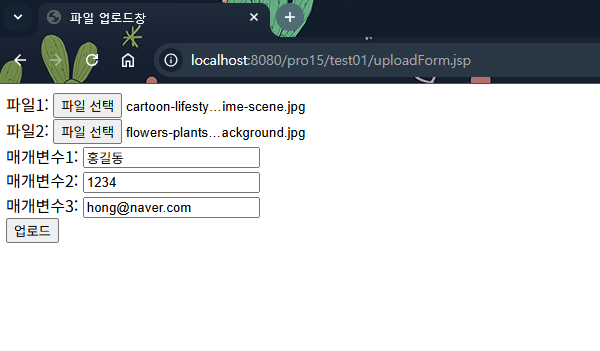
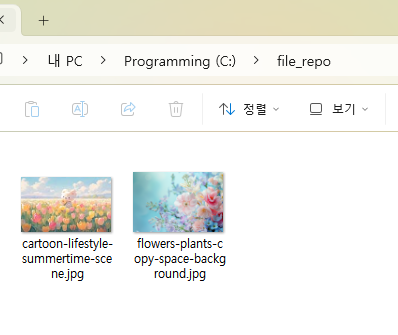
6. 2번 과정에서 만든 파일 저장소(C:\file_repo)에 가면 업로드된 파일들을 볼 수 있습니다.
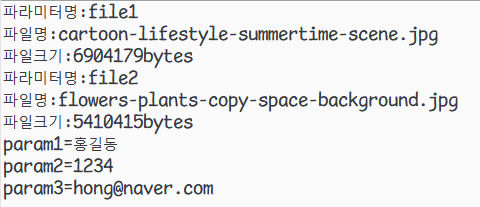
7. 또한 이클립스의 Console 탭을 보면 업로드한 매개변수 정보와 파일 정보가 출력된 것을 확인할 수 있습니다.
'프로그래밍 언어 > 자바 웹' 카테고리의 다른 글
| HTML5 주요 개념 (0) | 2026.04.22 |
|---|---|
| JSP에서 파일 다운로드 (0) | 2026.04.19 |
| 파일 업로드 관련 API (0) | 2026.04.13 |
| JSP에서 파일 업로드 (1) | 2026.04.11 |
| 표현 언어와 JSTL을 이용한 회원 관리 실습 (1) | 2026.04.08 |